How do I pay rent using MoneyGram?
You can pay with cash at a MoneyGram location. You will need three pieces of information from the Prisma Resident Portal.
-
Step 1. Open Make Payment
On the Dashboard (the first page you see after you log in), select Make a Payment. You can also select Make Payment in the menu on the left.
-
Step 2. Choose MoneyGram
Under Payment Type, select MoneyGram.
-
Step 3. Find your local MoneyGram
Find your local MoneyGram location here. Payment processes may vary depending on your location. Ask an associate for help if you are unfamiliar with MoneyGram.
-
Step 4. Check the payment details
Look at the amounts shown:
- Payment Amount: the amount that goes toward your balance.
- MoneyGram Fee: the fee for this payment, if any.
- Total Transaction Amount: the total you will pay at MoneyGram.
-
Step 5. Write down the Company Name and Receive Code
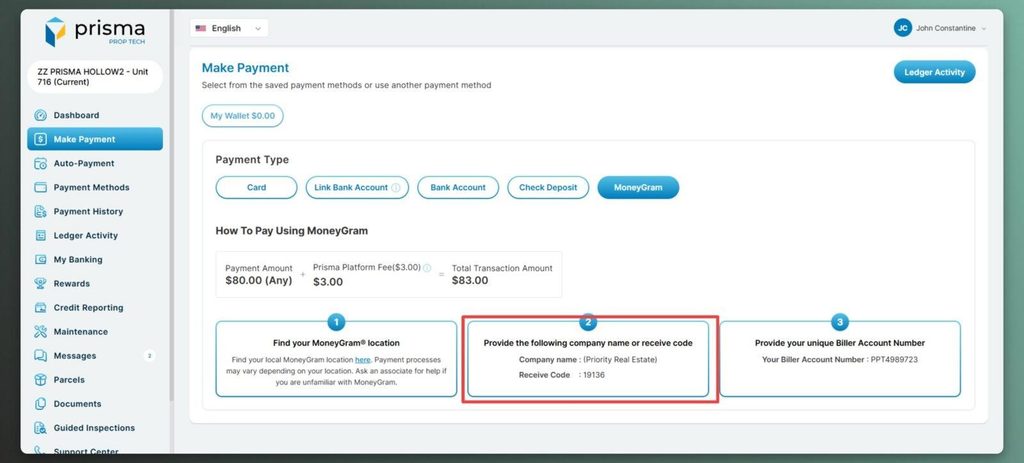
Under step 2 on the screen, find the Company Name and Receive Code. Write them down or print the page. You will give them to the MoneyGram associate.
-
Step 6. Write down your Biller Account Number
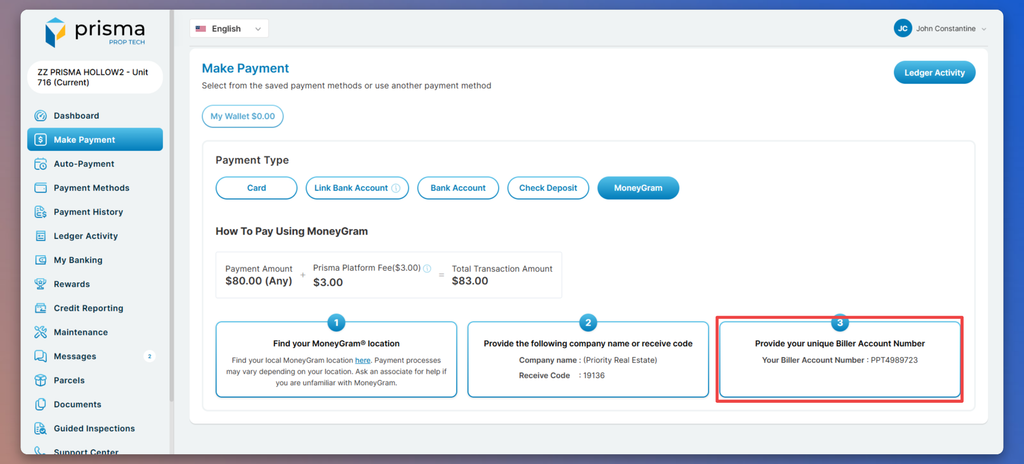
Under step 3 on the screen, find your Biller Account Number. This number is yours. It makes sure the payment goes to your account. Write it down carefully.
-
Step 7. Find a MoneyGram location
Under Find your MoneyGram location, select the link to find a location near you.
-
Step 8. Pay at MoneyGram
Tell the associate you want to make a bill payment. Give them the Company Name, Receive Code, Biller Account Number, and your cash. Check all details before you pay.
-
Step 9. Keep your receipt
Keep your MoneyGram receipt or confirmation number. After a few business days, check Payment History in the Prisma Resident Portal to make sure the payment arrived.
That’s it. You’re done.